
video studio ·
OpenGradient Video Studio: How to Pick the Right Model, Then Edit the Clips
The working guide to the Video Studio: what each stage of the pipeline is for, which model to open at each one — Seedance, Veo, Kling, Wan, Happy Horse — and how a single clip ends up as a finished, edited video.
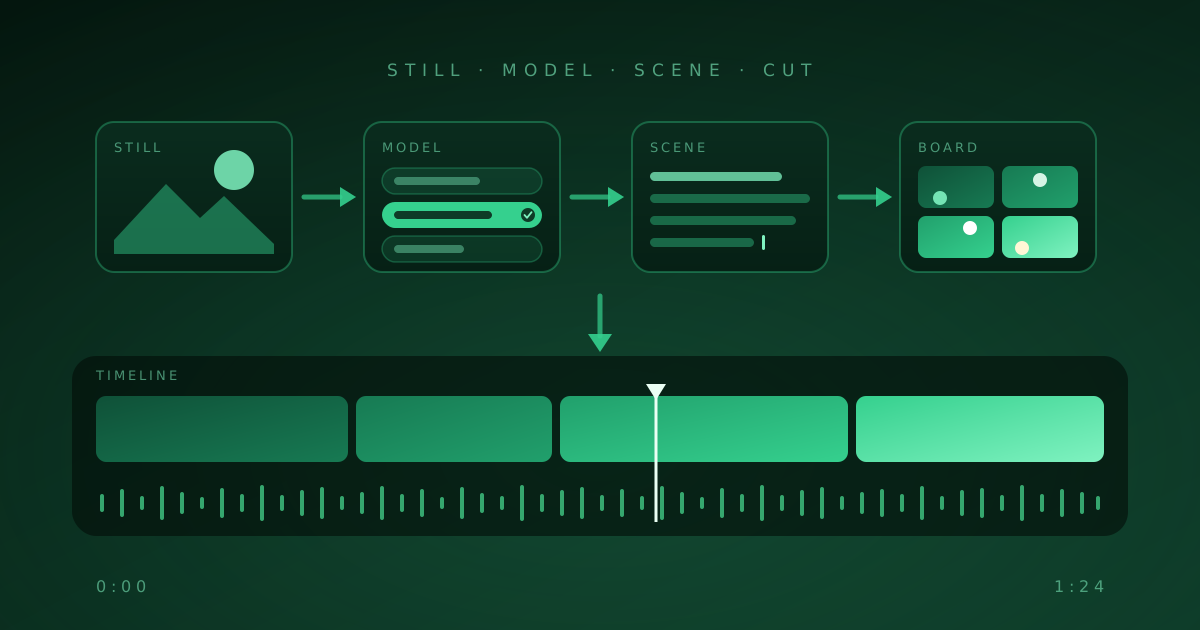
The OpenGradient Video Studio is a private, unrestricted AI video generator with every frontier video model in one place and a Movie Editor at the end of the line. This is the working guide: what each stage of the Studio is for, which model to open at each one, and how a single clip ends up as a finished video.
Start from the end: a clip, or a video?
Before you open anything, decide what you're making.
A clip is one shot. One prompt, one model, five to thirty seconds. Most AI video tools stop here, and for a product loop, a reaction gif or a mood piece, that's all you need.
A video is several shots that agree with each other. Same face in every one, same room, sound that carries across cuts, a beginning and an end. That takes more than a generator, and the Studio's layout is built around it. The home screen is three rows - Create, Quick start, Post-production - and if you read them as stages, they're the pipeline from a still image to an edited video.
Stage 1: Get the still right
The cheapest fix for bad video is a good image.
Generate the frame in the Image Studio first, or upload one, and only then open Image to Video. Composition, lighting and the face are already decided; the model only has to move them. Seedance 2.5 accepts up to 30 reference images per shot, so a character, a wardrobe, a location and a style plate can all be pinned before anything moves.
If the same person needs to appear in every shot, Character Studio is the stage-one tool. It's a roster of ready-made characters: pick a face and it drops you straight into Image to Video with that character pinned as the reference, and they keep their look from clip to clip. The same characters are available inside Recipes. It's in beta - the roster is ours for now, and making your own character is the next step, not this one - and it doesn't reach into Storyboard or Text to Video yet, so for multi-scene consistency there, describe the character in the premise instead.
Stage 2: Pick the model for the shot
This is where most credits get wasted, and it's usually not the prompt. Every model has a temperament, and a prompt that misses on one often lands on another untouched.
The Studio's model list is badged so you can read it at a glance. Here's how we sort it internally.
The filtered flagships. Seedance 2.5 for narrative scenes: up to 30 seconds in one generation with synced dialogue, and it wants a full production brief, not a one-liner. Veo 3.1 when the shot has to pass for camera footage, up to 4K with native audio; it reads technical language best. Kling v3 Pro when bodies have to move convincingly.
The unrestricted line. Wan 3.0 and Wan 2.7 for briefs that other tools refuse: no provider-side prompt filters, clearly badged, with audio. They read plain visual description and don't fill gaps, so say exactly what happens. Happy Horse 1.1 is the least filtered model in the Studio, with 21:9 widescreen. Unrestricted still has rules: illegal content is banned, explicit capabilities are gated 18+, and sexual content of real people without consent is prohibited. More on the unrestricted lane.
The drafting models. Wan 2.2 14B, Wan 2.5 and Seedance 2.0 Mini exist so you can find the shot before you pay for it. A 5-second Wan 2.2 14B draft at 480p is 88 credits. Run it a few times, change one thing per pass, then carry the winning prompt up to a flagship.
Don't want to choose? Two selectors at the top of the Text to Video form do it for you: Quality (Draft, Balanced, Best) and Filters (Standard, Uncensored, Zero filters). Balanced + Standard gives you Seedance 2.0. Best + Standard is Seedance 2.5. Best + Uncensored is Wan 2.7. Zero filters is always Happy Horse. Every model and spec is listed here.
Stage 3: Write the scene, not the tags
Whichever model you land on, the prompts that work in the Studio read like a note to a crew, not a list of keywords.
Say who is in the frame and what they do. Say where the camera is and whether it moves. Say what the light is doing. If the model generates sound, tell it what to hear in half a sentence, and say "no music" if you don't want any. Leave out the "no blur, no extra fingers" lists; every model here responds better to being told what to do than what to avoid.
Match the register to the model: technical for Veo, plain and explicit for Wan, a long brief for Seedance 2.5, which gives you 10,000 characters and rewards every one. The full prompt guide, with the mistakes that cost us credits.
And if none of that appeals, Recipes skip the prompt entirely. Fill in a form, get the video.
Stage 4: Plan the scenes
A 30-second take is still one shot. When you need several, Storyboard is the tool. Give it one premise - a sentence or two - and pick how many scenes you want, three to six. It plans the beats, renders a keyframe for each one, and you fix anything you don't like before a single second of video is paid for. Then it animates the set: each keyframe becomes a roughly 5-second clip on the image-to-video model of your choice (Seedance 2.0 by default, any of them if you have opinions), and a seamless-transitions switch ends each shot on the next scene's keyframe so the cuts match. The finished clips land in your library, with a Send to Movie Editor button that puts them on the timeline in story order.
Note that this is Storyboard's job, not the Director's. The Director is a chat window for getting one clip right: describe it, it picks the model and writes the prompt, you refine together. Useful, but single-clip.
Stage 5: Edit the clips
This is the stage most people don't know exists, and it's the reason the Studio is a studio rather than a picker.
Open the Movie Editor from the Post-production row. Your generated clips are already there, in the same tab, no downloading and re-uploading. Put them on the timeline and cut them into one continuous video: trim from either end, split at the playhead, drag to reorder, duplicate, delete, with 50 steps of undo behind you. Drop in a music track and it's mixed under the clips' own audio. Cuts can be hard or crossfaded. When it's done, export one MP4 - 720p or 1080p, in any aspect from 16:9 to 9:16 - rendered right in your browser, so the footage never leaves the tab.
What it doesn't do yet, so you don't go looking:
- Adjust clip volume
- Add text overlays
- Add transitions other than the crossfade, or effects
When the edit is done, Upscale sharpens the finished piece for delivery: 2x or 4x the source resolution, with three quality presets from a fast check to a slow maximum-detail pass. It works on uploaded videos too, not just Studio clips.
What it costs, and when you find out
Before you click. Every generation is priced per clip by model, duration and resolution, and the number sits on the Generate button. 1,000 credits = $1. Seedance 2.0 at 5 seconds, 720p, audio on is 988 credits. Ten seconds is 1,976. Happy Horse at 5 seconds is 910. The Wan 2.2 14B draft is 88.
Free credits when you sign up, no card. Credits never expire and the same balance covers chat, images and video. Full pricing.
The part that's ours
Everything above is tooling. Here's the bit that matters: none of it is logged against your name. Every prompt and reference image is encrypted on your device, identity split from content by Oblivious HTTP relays, decrypted only inside attested secure enclaves. No single party, including us, holds both who you are and what you made. The full architecture is here.
Video is where that matters most. These models can put your real face, your kid's birthday, or a client's unannounced product on screen. Several mainstream tools now want a government ID, a selfie and a face scan before you can generate anything. We built the one that doesn't.
Go make something
Live now, free to start, no card.
Try Seedance 2.5 text to video
If you edit something together in the Movie Editor that you're proud of, I want to see it. And if the stage you keep doing by hand isn't in the Studio yet, tell us. Most of what's in it came from someone asking.
- video studio
- movie editor
- video
- guide
- unrestricted